accordion title here
The Easy Accordion Gutenberg Block is a versatile custom block designed with Gutenberg Native components, enabling users to effortlessly create accordion or FAQ sections without any coding knowledge. This block is both fast and lightweight, ensuring optimal performance by only loading scripts on the pages where it is used. Highly customizable, it seamlessly integrates with any WordPress theme, offering compatibility and flexibility for various site designs. Ideal for enhancing user experience, the Easy Accordion Gutenberg Block provides a simple yet powerful solution for organizing content in a user-friendly manner.
- Feature One
- Feature Two
- Feature Three
accordion title here
The Easy Accordion Gutenberg Block is a versatile custom block designed with Gutenberg Native components, enabling users to effortlessly create accordion or FAQ sections without any coding knowledge. This block is both fast and lightweight, ensuring optimal performance by only loading scripts on the pages where it is used. Highly customizable, it seamlessly integrates with any WordPress theme, offering compatibility and flexibility for various site designs.
accordion title here third
The Easy Accordion Gutenberg Block is a versatile custom block designed with Gutenberg Native components, enabling users to effortlessly create accordion or FAQ sections without any coding knowledge. This block is both fast and lightweight, ensuring optimal performance by only loading scripts on the pages where it is used. Highly customizable, it seamlessly integrates with any WordPress theme, offering compatibility and flexibility for various site designs.
Install and Activate the Plugin
Step 1: Go to your WordPress Dashboard: Navigate to Plugins > Add New.
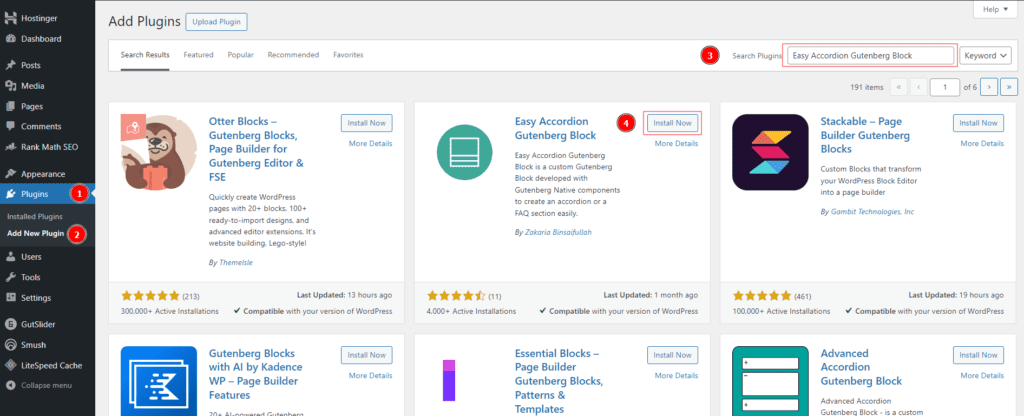
Search for Easy Accordion Gutenberg Block: Type “Easy Accordion Gutenberg Block” in the search bar.
Install and Activate: Click “Install Now” and then “Activate”.
Step 2: Add the Main Accordion Block
Create or Edit a Post/Page: Go to Posts > Add New or Pages > Add New.
Insert Accordion Block: Click the “+” button, search for “Accordion,” and select the Easy Accordion block.
Add Titles and Content: Enter the title and content for the main accordion items.
Step 3: Add Nested Accordion Blocks
Within the Main Accordion Content: Click the “+” button inside the content area of the main accordion.
Insert Another Accordion Block: Search for “Accordion” again and select the Easy Accordion block.
Add Titles and Content for Nested Accordion: Enter titles and content for the nested accordion items.
Step 4: Customize Accordion Settings
Customize Main Accordion: Use the settings in the right sidebar to adjust colors, borders, and other styles. For example:
Border Color: Set the color for the accordion’s border.
Active Border Color: Choose a different color for the border when the accordion item is active.
Customize Nested Accordion: Repeat the customization process for the nested accordion to ensure consistent styling.
Step 5: Preview and Publish
Preview: Click the preview button to see how your nested accordions look on different devices.